




Details
MSFSRECPLAY for Microsoft Flight Simulator 2024
Relive the flight. Direct the replay.
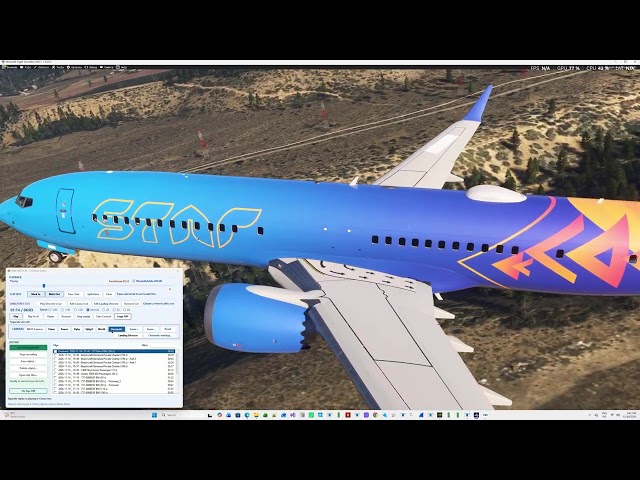
Press Record my aircraft, fly, then hit Play to watch it back inside Microsoft Flight Simulator 2024. Review a landing in slow motion, watch your approach from the runway side, or take the controls and fly it again from the point you choose.
Features
-
Record and replay. Keep up to 10 minutes of recent flight in a rolling buffer. Save and reopen clips, or replay them using your own aircraft or a supported separate AI aircraft.
-
Find the moment you want. Pause, drag the playback slider, loop a clip, or change speed from ⅛× to 8×.
-
Edit while you watch. Set Mark In and Mark Out on the playback timeline to save a trimmed copy, or split a recording into two clips. Your original stays intact.
-
Choose your camera. Use the native MSFS Camera or switch to Chase, Tower, Flyby, FlybyO, World, or Cinematic.
-
Create your own cinematic sequences. Save up to three custom sequences. Adjust orbit, height, distance, and shot length, then preview the camera path and height before playback.
-
Let Landing Director frame the landing. Automatically switch between approach, touchdown, and rollout views when a landing is detected.
-
Build a Director’s Cut. Place camera changes exactly where you want them on the timeline and replay the sequence.
-
Take Control. During replay on your own aircraft, resume flying from the selected moment.
MSFSRECPLAY is a standalone Windows app. Use On Top to keep its controls within reach while you fly. The app remembers your choice.
Requirements
Microsoft Flight Simulator 2024 on a Windows 64-bit PC. Separate AI playback and aircraft animations depend on the aircraft model.
Stichworte
Anforderungen
MSFS2024
Empfohlene Produkte

€ 19.00
$
USD 20.93
Alle Verkäufe in Euro. Andere Währungen werden nur als Referenz angezeigt.£
GBP 15.86
Alle Verkäufe in Euro. Andere Währungen werden nur als Referenz angezeigt.¥
CNY 139.51
Alle Verkäufe in Euro. Andere Währungen werden nur als Referenz angezeigt.
€ 5.00
$
USD 5.51
Alle Verkäufe in Euro. Andere Währungen werden nur als Referenz angezeigt.£
GBP 4.17
Alle Verkäufe in Euro. Andere Währungen werden nur als Referenz angezeigt.¥
CNY 36.71
Alle Verkäufe in Euro. Andere Währungen werden nur als Referenz angezeigt.
€ 15.00
$
USD 16.52
Alle Verkäufe in Euro. Andere Währungen werden nur als Referenz angezeigt.£
GBP 12.52
Alle Verkäufe in Euro. Andere Währungen werden nur als Referenz angezeigt.¥
CNY 110.14
Alle Verkäufe in Euro. Andere Währungen werden nur als Referenz angezeigt.
€ 16.00
$
USD 17.62
Alle Verkäufe in Euro. Andere Währungen werden nur als Referenz angezeigt.£
GBP 13.35
Alle Verkäufe in Euro. Andere Währungen werden nur als Referenz angezeigt.¥
CNY 117.48
Alle Verkäufe in Euro. Andere Währungen werden nur als Referenz angezeigt.
€ 18.93
$
USD 20.85
Alle Verkäufe in Euro. Andere Währungen werden nur als Referenz angezeigt.£
GBP 15.80
Alle Verkäufe in Euro. Andere Währungen werden nur als Referenz angezeigt.¥
CNY 138.99
Alle Verkäufe in Euro. Andere Währungen werden nur als Referenz angezeigt.
€ 14.49
$
USD 15.96
Alle Verkäufe in Euro. Andere Währungen werden nur als Referenz angezeigt.£
GBP 12.09
Alle Verkäufe in Euro. Andere Währungen werden nur als Referenz angezeigt.¥
CNY 106.39
Alle Verkäufe in Euro. Andere Währungen werden nur als Referenz angezeigt.
€ 19.99
$
USD 22.02
Alle Verkäufe in Euro. Andere Währungen werden nur als Referenz angezeigt.£
GBP 16.68
Alle Verkäufe in Euro. Andere Währungen werden nur als Referenz angezeigt.¥
CNY 146.78
Alle Verkäufe in Euro. Andere Währungen werden nur als Referenz angezeigt.
€ 12.00
$
USD 13.22
Alle Verkäufe in Euro. Andere Währungen werden nur als Referenz angezeigt.£
GBP 10.01
Alle Verkäufe in Euro. Andere Währungen werden nur als Referenz angezeigt.¥
CNY 88.11
Alle Verkäufe in Euro. Andere Währungen werden nur als Referenz angezeigt.